


GeoGebra
You can use GeoGebra to draw polyhedra, such as a tetrahedron, octahedron, cube, or dodecahedron. It can also display the total volume of the polyhedron you create.
GeoGebra Instruction 1
Drawing a Tetrahedron
- 1.
- Open
Algebra ViewandGraphics Viewunder
Viewin
Menu. - 2.
- Select the tool
Regular polygon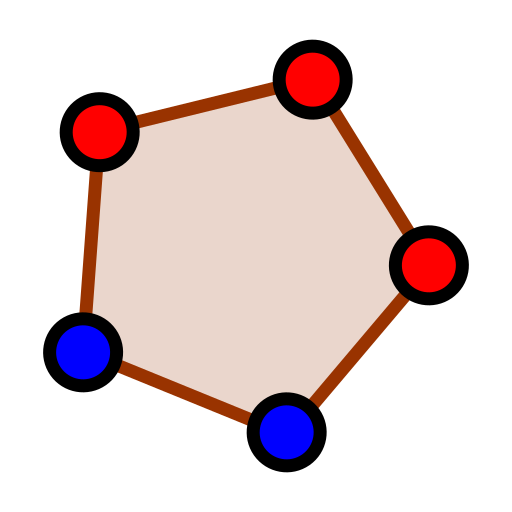 , which is the fifth item in the
 Toolbarand the second tool from that list. - 3.
- Draw an equilateral triangle by clicking on two points in
Graphics View. These will be two of the vertices of the triangle. WhenGeoGebraasks you how many vertices you want, type3. - 4.
- Close
Graphics Viewand open3D Graphicsunder Viewin Menu. - 5.
- Click on an empty space in
3D Graphicsto updateToolbarwith new tools. Select the toolTetrahedron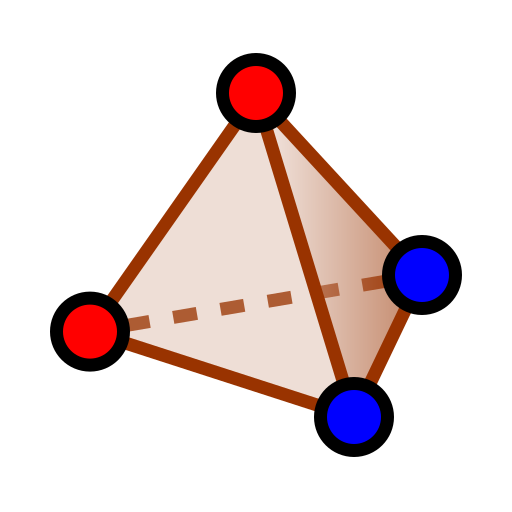 from the ninth item in the
 Toolbar(Pyramid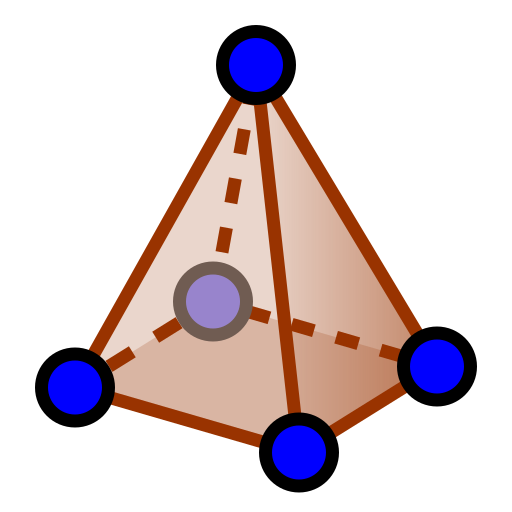 ) and the seventh tool from that list.
 - 6.
- Click on the triangle you made in Step 4.
The tetrahedron will now appear in 3D Graphics. The volume of the tetrahedron will appear in Algebra View.
GeoGebra Instruction 2
Drawing an Octahedron
- 1.
- Open
Algebra ViewandGraphics Viewunder Viewin Menu. - 2.
- Select the tool
Regular polygon, which is the fifth item in the Toolbarand the second tool from that list. - 3.
- Draw an equilateral triangle by clicking on two points in
Graphics View. This will be two of the vertices of the triangle. WhenGeoGebraasks you how many vertices you want, type3. Pay attention to the name of the triangle, since it will be used in a later step.GeoGebrawill call itpoly1if it’s the first figure you’ve created in this session. - 4.
- Close
Graphics Viewand open3D Graphicsunder Viewin Menu. - 5.
- In a new row in
Algebra View, type inOctahedron
and select
Octahedron(<Equilateral Triangle>)
among the options that appear. Replace
<Equilateral Triangle>with the name of your triangle from Step 3.
The octahedron will now appear in 3D Graphics. The volume of the octahedron will appear in Algebra View.
GeoGebra Instruction 3
Drawing an Icosahedron
- 1.
- Follow Steps 1–4 in Item 5.
- 2.
- In a new row in
Algebra View, type inIcosahedron
and select
Icosahedron(<Equilateral Triangle>)
among the options that appear. Replace
<Equilateral Triangle>with the name of your triangle from Step 3 in Item 5.
The icosahedron will now appear in 3D Graphics. The volume of the icosahedron will appear in Algebra View.
GeoGebra Instruction 4
Drawing a Cube
- 1.
- Open
Algebra ViewandGraphics Viewunder Viewin Menu. - 2.
- Select the tool
Regular polygon, which is the fifth item in the Toolbarand the second tool from that list. - 3.
- Draw a square by clicking on two points in
Graphics View. These will be two of the vertices of the square. WhenGeoGebraasks you how many vertices you want, type4. - 4.
- Close
Graphics Viewand open3D Graphicsunder Viewin Menu. - 5.
- Click on an empty space in
3D Graphicsto updateToolbarwith new tools. Select theCube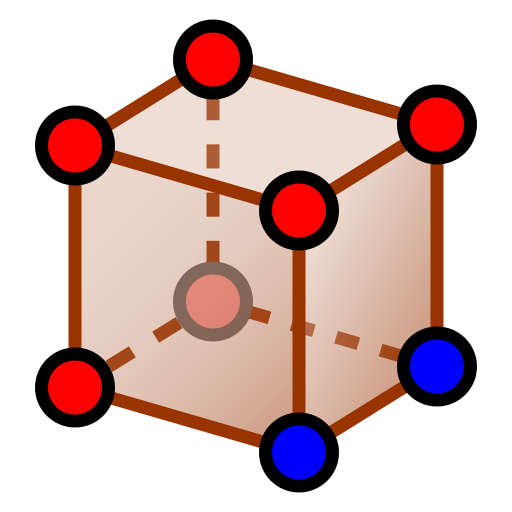 tool from the ninth item in the
 Toolbar(Pyramid) and the eighth tool from that list. - 6.
- Click on the square you made in Step 3.
The cube will now appear in 3D Graphics. The volume of the cube will appear in Algebra View.
GeoGebra Instruction 5
Drawing a Dodecahedron
- 1.
- Open
Algebra ViewandGraphics Viewunder Viewin Menu. - 2.
- Select the tool
Regular polygon, which is the fifth item in the Toolbarand the second tool from that list. - 3.
- Draw a regular pentagon by clicking on two points in
Graphics View. These will be two of the vertices of the pentagon. WhenGeoGebraasks you how many vertices you want, type5. Pay attention to the name of the pentagon, since it will be used in a later step.GeoGebrawill call itpoly1if it’s the first figure you’ve created in this session. - 4.
- Close
Graphics Viewand open3D Graphicsunder Viewin Menu. - 5.
- In a new row in
Algebra View, type inDodecahedron
and select
Dodecahedron(<Regular Pentagon>)
among the options that appear. Replace
<Regular Pentagon>with the name of the pentagon you made in Step 3.
The dodecahedron will appear in 3D Graphics. The volume of the dodecahedron will appear in Algebra View.